User Guide
Sigfox Sensor Platform
This guide explains how to use the web interface of the platform: how to sign in, view sensors, manage groups, users, Element rooms, and Sigfox messages.
The public part of the guide is available without authorization. Administrative pages are available only after signing in.
Table of Contents
1. How the system works
Sigfox Sensor Platform receives messages from Sigfox Backend, stores them in the database, displays them in the administrative interface, and can forward messages to an Element room.
1 sensor = 1 group = 1 Element room = 1 Delta layer via Signal Bot
The system does not manage Delta layers directly. The connection between an Element room and a Delta layer is configured by Signal Bot. It is recommended that the Element room name matches the Delta layer name, so users can easily understand where messages are delivered.
| Object | Meaning |
|---|---|
| Sensor | A physical Sigfox device with a unique Sigfox Device ID. |
| Group | Combines sensors, users, and one Element room. |
| Element Room | The Element/Matrix room where the system sends messages from group sensors. |
| User | A person’s account with a specific role and access to groups. |
| Message | A received Sigfox message with sensor data, coordinates, and Element sending status. |
2. Login
- Open the login page:
/login. - Enter your username.
- Enter your password.
- Click the login button.
- After successful login, the Sensors page will open.
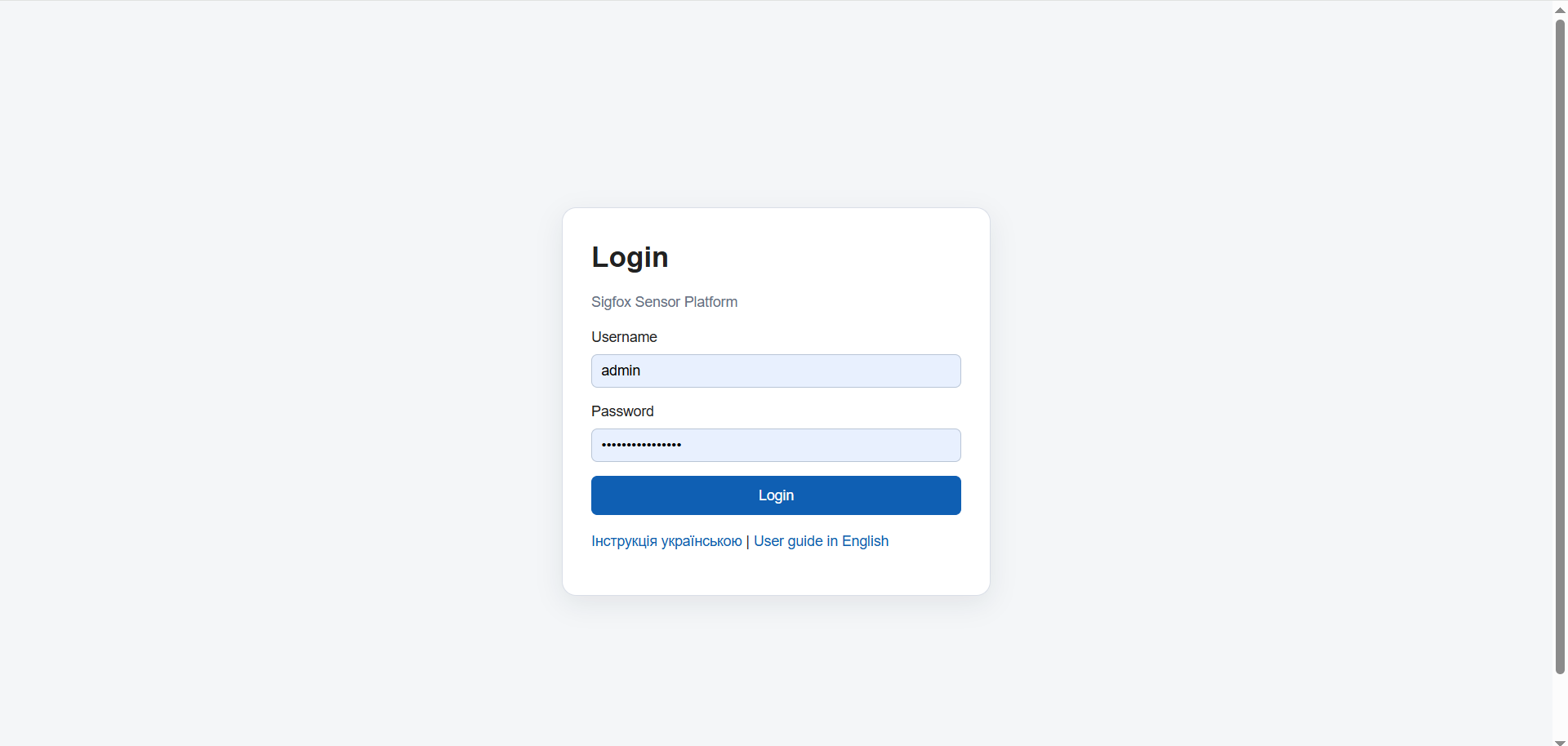
/guide/img/login.pngFigure 1. System login page
3. User roles
Access in the system depends on the user role. There is one global role, SUPER_ADMIN, and group-level roles: GROUP_ADMIN, OPERATOR, and VIEWER.
| Role | Access level | What the user can do | Typical limitations |
|---|---|---|---|
| SUPER_ADMIN | Whole system | Can see all groups, sensors, messages, and users. Creates groups and users, configures Element. | Has maximum permissions. Used only for administration. |
| GROUP_ADMIN | Own groups only | Manages sensors and users inside own group, can add OPERATOR and VIEWER users. | Cannot view or manage other groups. |
| OPERATOR | Own groups only | Works with sensors and messages inside own group. | Does not manage users or global settings. |
| VIEWER | Own groups only | Views sensors, groups, and messages. | Cannot create, edit, or delete data. |
4. Main system pages
| Page | URL | Purpose | Available to |
|---|---|---|---|
| Sensors | /admin/sensors |
View, create, edit, and disable sensors. | Depends on the user role and group access. |
| Messages | /admin/messages |
View received Sigfox messages and Element sending status. | Depends on the user role and group access. |
| Groups | /admin/groups |
Manage groups, Element rooms, and group readiness status. | SUPER_ADMIN, GROUP_ADMIN for own groups. |
| Group Users | /admin/groups/{id}/users |
Users of a specific group and their roles. | SUPER_ADMIN, GROUP_ADMIN for own group. |
| Users | /admin/users |
Create users, enable/disable accounts, reset passwords. | Mainly SUPER_ADMIN. |
| Change password | /admin/profile/password |
Change your own password. | All authenticated users. |
5. Working with sensors
The Sensors page shows sensors available to the current user. For a SUPER_ADMIN, this means all sensors in the system. For group users, only sensors from their groups are displayed.
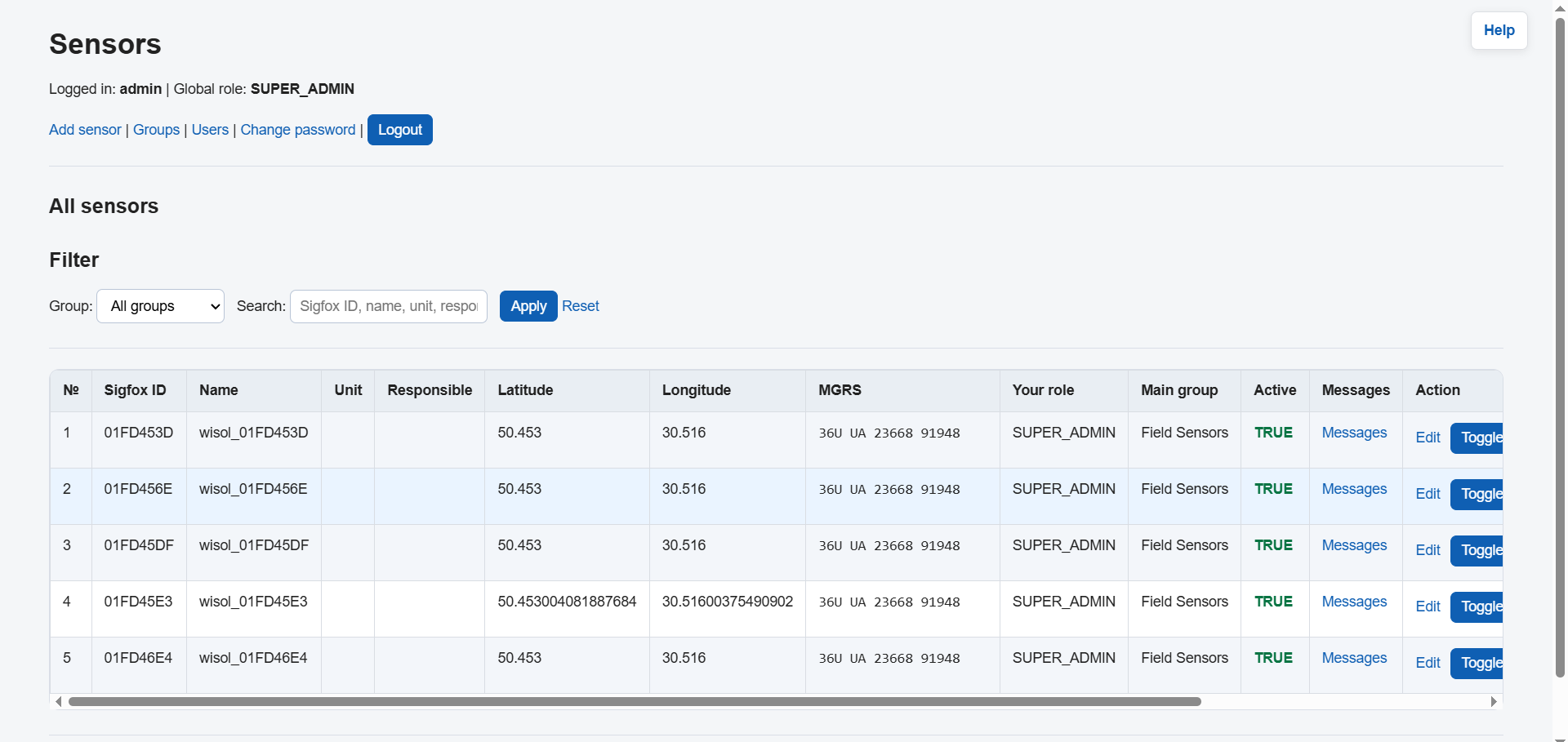
/guide/img/sensors.pngFigure 2. Sensors page
Main sensor fields
| Field | Description | Example |
|---|---|---|
| Sigfox Device ID | Unique Sigfox device ID. It must contain exactly 8 hexadecimal characters. | 01FD456E |
| Name | Human-readable sensor name. | Sensor North 01 |
| Unit | Unit name or internal user group label. | 3 mb |
| Responsible | Responsible person. | Ivan |
| Group | The group that owns the sensor. It defines access and the Element room. | North |
| MGRS | Coordinates in MGRS format. If MGRS is entered, the system can calculate Latitude/Longitude. | 37U CQ 60000 54614 |
| Latitude / Longitude | Geographic coordinates of the sensor. | 50.4501 / 30.5234 |
| Active | If the sensor is disabled, it is not used in normal operation. | true |
Adding a new sensor
- Open Sensors.
- Click Add sensor.
- Enter the Sigfox Device ID.
- Fill in the name, unit, responsible person, and comment.
- Select the sensor group.
- Enter coordinates as MGRS or Latitude/Longitude.
- Click Save.
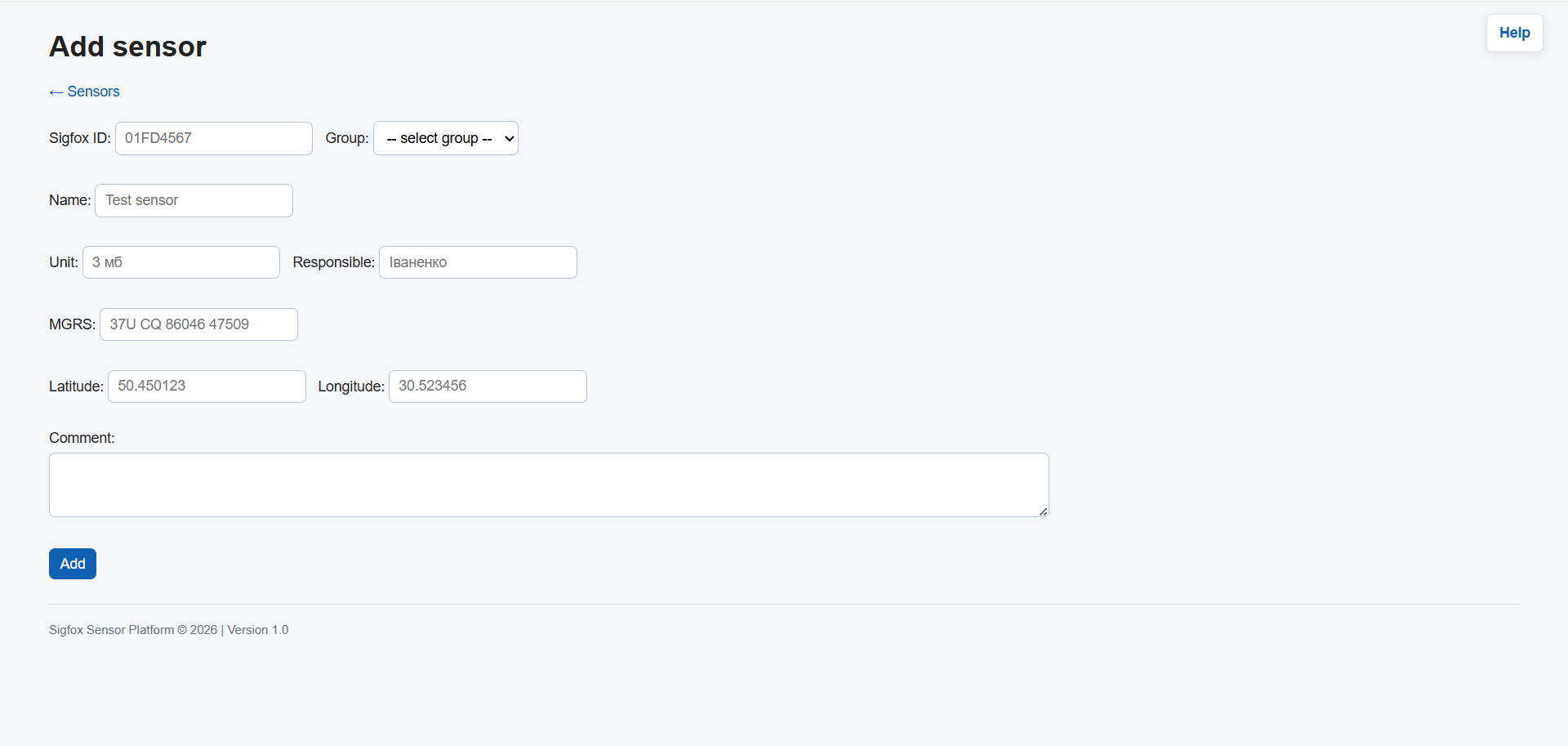
/guide/img/sensor-new.pngFigure 3. Sensor creation form
6. Groups and Element settings
A group determines who can see sensors and messages, and also which Element room will receive messages.
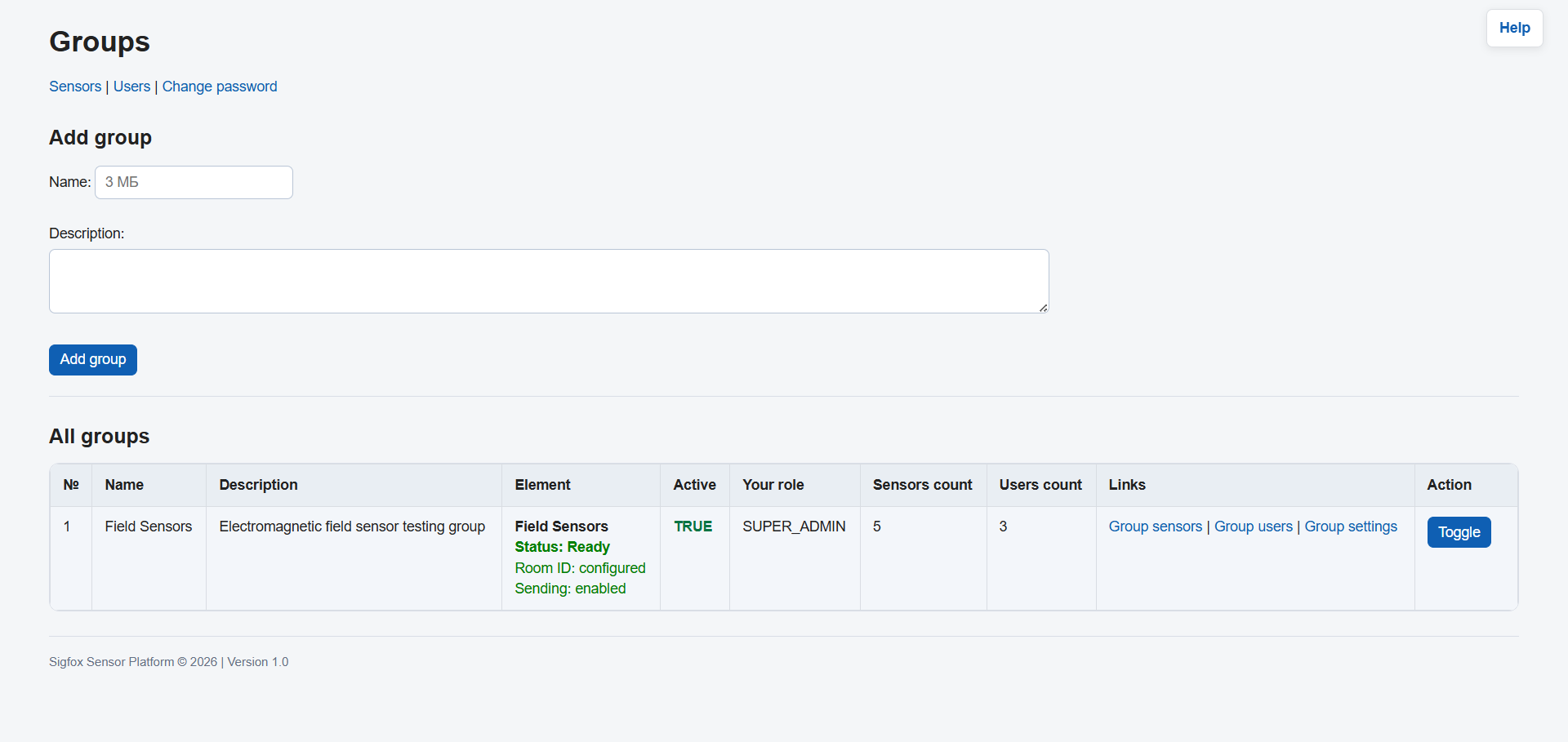
/guide/img/groups.pngFigure 4. Groups page
When a group is ready for Element sending
- The group is active.
- The group has at least one GROUP_ADMIN.
- Element sending enabled is turned on.
- Element room ID is filled in.
Element settings fields
| Field | Meaning | Example |
|---|---|---|
| Element room name / alias | Human-readable room name. It is recommended to use a name matching the Delta layer. | North Layer |
| Element room ID | Technical Matrix Room ID. Usually starts with !. |
!abcdef:matrix.server |
| Element sending enabled | Allows or disables sending messages from this group to Element. | true |
| Active | Enables or disables the group itself. | true |
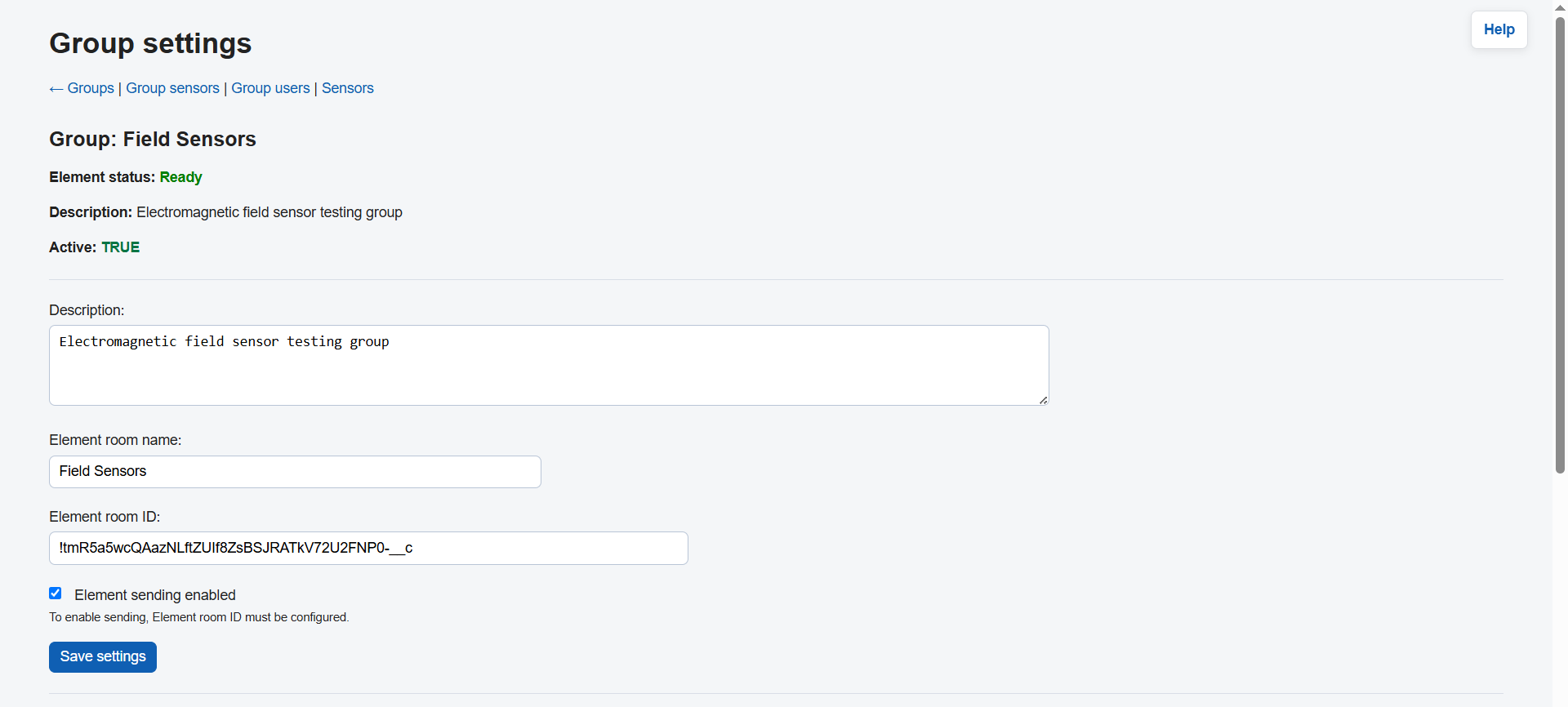
/guide/img/group-settings.pngFigure 5. Group and Element room settings
7. Users and group access
Users are created separately and then added to required groups with a specific role.
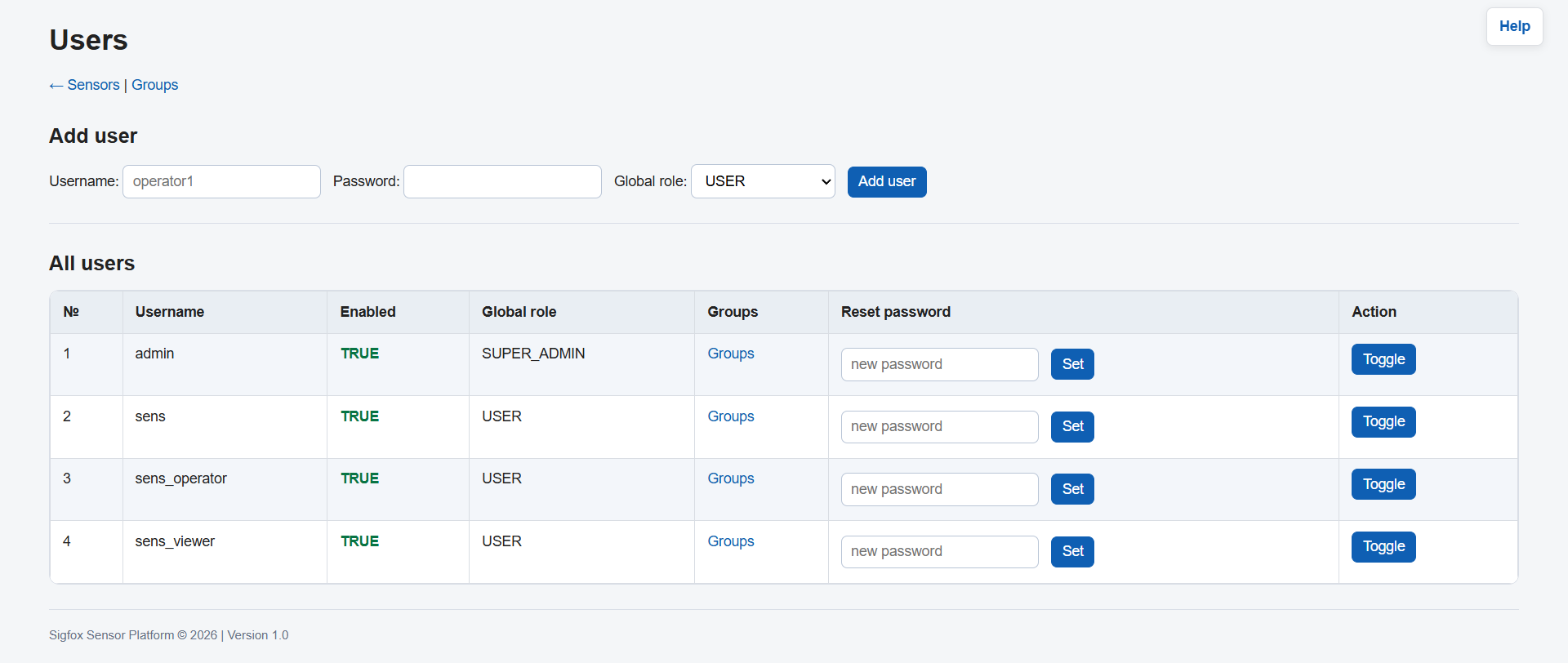
/guide/img/users.pngFigure 6. Users page
Adding a user to a group
- Open the Groups page.
- Select the required group.
- Open Users or Group users.
- Select the user.
- Choose the role: GROUP_ADMIN, OPERATOR, or VIEWER.
- Save the changes.
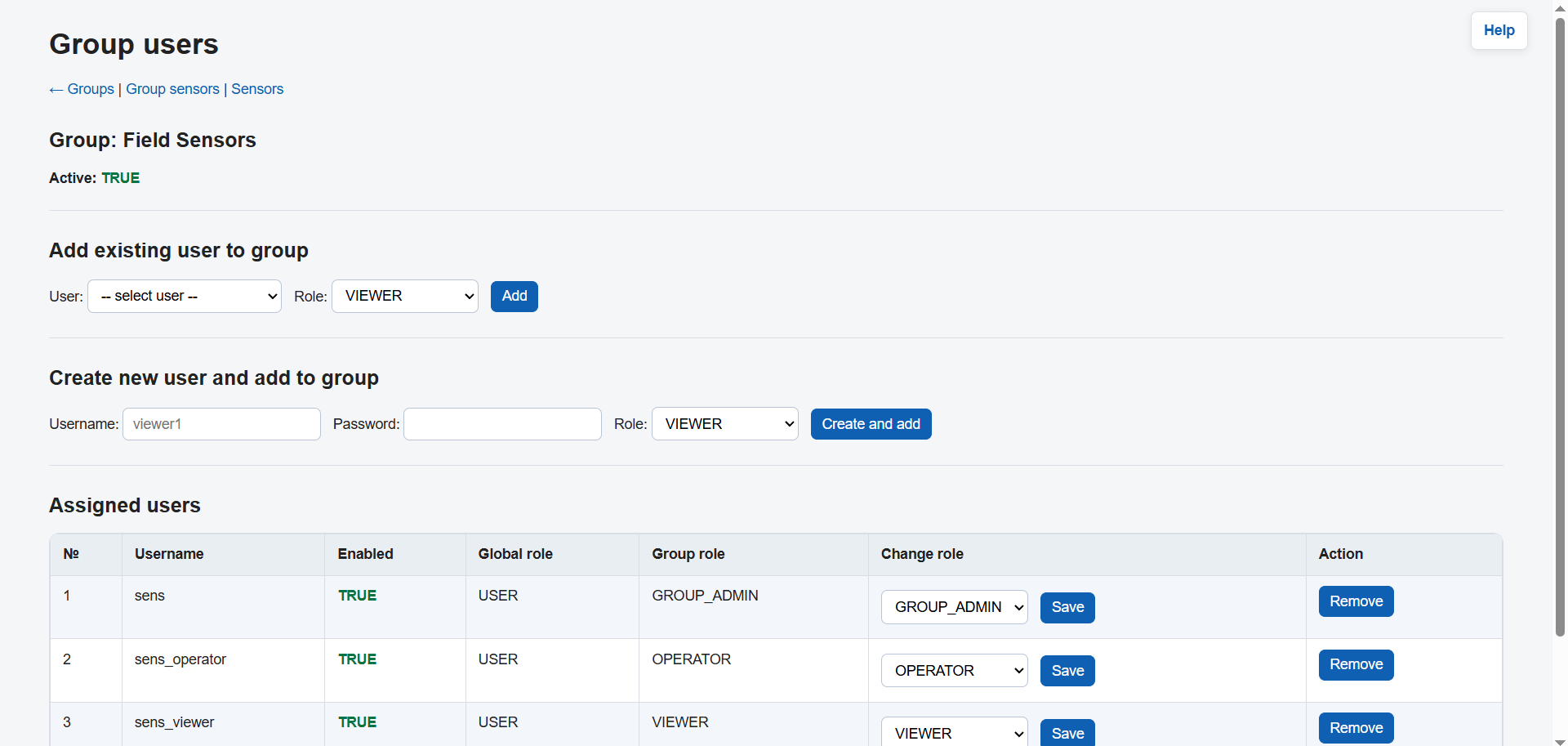
/guide/img/group-users.pngFigure 7. Group users and their roles
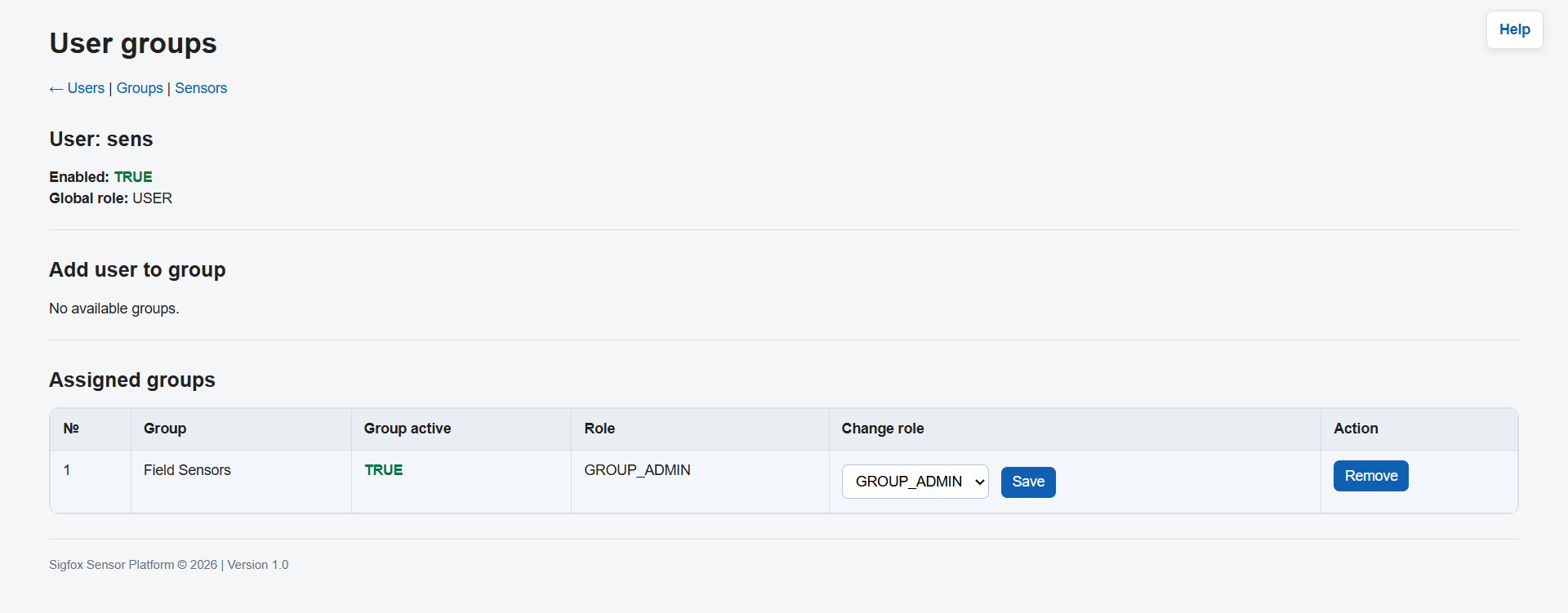
/guide/img/user-groups.pngFigure 8. Groups of a specific user
8. Sigfox messages
The Messages page shows messages received from Sigfox Backend. Here you can check whether a message was received, processed, and sent to Element.
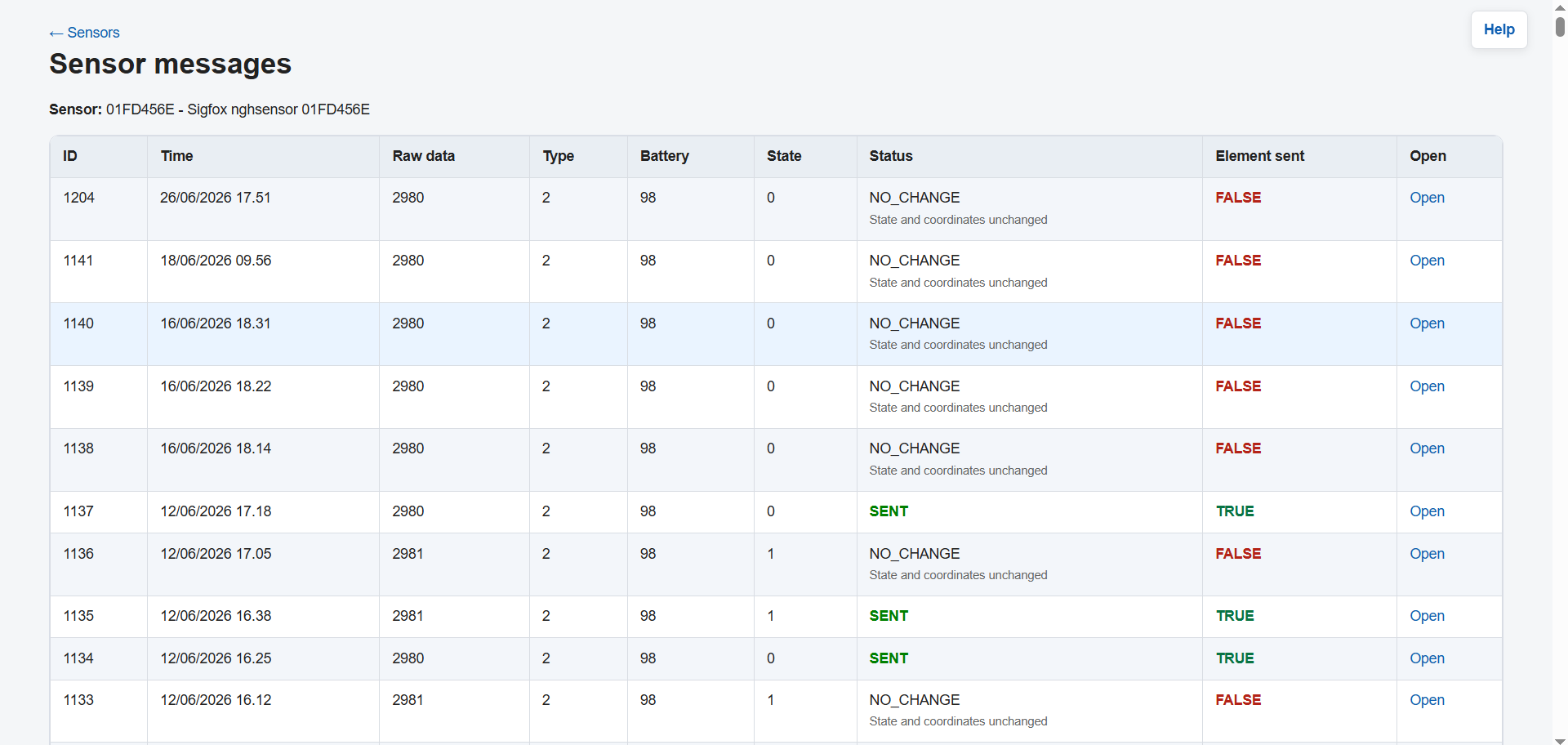
/guide/img/messages.pngFigure 9. Messages page
Main message data
| Field | Description |
|---|---|
| Sigfox Device ID | ID of the sensor that sent the message. |
| Time | Message time. |
| Data | Raw payload received from Sigfox. |
| Coordinates | Sensor coordinates or coordinates from settings. |
| Element status | Shows whether the message was sent to Element. |
| Last error | The latest processing error or an explanation of why the message is waiting for configuration. |
Reply in Element
A reply is available only for messages that have already been sent to Element and have saved Element room ID and Element event ID.
9. Role-based examples
SUPER_ADMIN — full setup of a new group
Situation: a new sensor group must be created and connected to Element.
- Sign in as SUPER_ADMIN.
- Open Groups.
- Create a group, for example
North. - Open the group settings.
- Enter Element room name / alias.
- Enter Element room ID.
- Turn on Element sending enabled.
- Create user
ivan. - Add
ivanto theNorthgroup as GROUP_ADMIN. - Create sensor
01FD456Eand assign it to theNorthgroup.
Result: messages from sensors in the North group will be sent to the Element room of this group.
GROUP_ADMIN — managing own group
Situation: a group administrator adds an operator and a sensor.
- Sign in as a user with the GROUP_ADMIN role in the relevant group.
- Open your group.
- Check whether the group is active and ready for Element.
- Add a user to the group as OPERATOR or VIEWER.
- Open Sensors.
- Add or edit a sensor in your group.
- Check on the Messages page whether messages are arriving.
Limitation: GROUP_ADMIN works only within their own groups and does not manage the whole system.
OPERATOR — working with sensors and messages
Situation: an operator checks sensor operation.
- Sign in as OPERATOR.
- Open Sensors and view sensors in your group.
- Check sensor activity and coordinates.
- Open Messages.
- Check the latest messages and Element sending status.
- If a message has WAITING CONFIG or ERROR status, inform GROUP_ADMIN or SUPER_ADMIN.
Limitation: OPERATOR does not manage users and does not change global settings.
VIEWER — read-only access
Situation: a user only needs to see sensor and message status.
- Sign in as VIEWER.
- Open Sensors.
- View sensors in your group.
- Open Messages.
- Check the latest messages and statuses.
Limitation: VIEWER does not create, edit, or delete data.
10. Message statuses and typical cases
| Status | Meaning | What to do |
|---|---|---|
| SENT | The message was successfully sent to Element. | No additional action is required. |
| NEW | A new message has been received and is waiting for processing. | Wait until element-sender processes it. |
| CHANGED | The message contains changes and will be sent as an update. | Wait for processing. |
| WAITING CONFIG | The group or Element room is not fully configured yet. | Check the group: active, GROUP_ADMIN, Element sending enabled, room ID. |
| ERROR | A technical error occurred during sending or processing. | Check Last error and contact the administrator. |
Typical problems
| Problem | Reason | Solution |
|---|---|---|
| User cannot see a sensor | The user is not added to the sensor group, or the group is inactive. | Add the user to the group or check group status. |
| Message is not sent to Element | Element room ID is not configured, or sending is disabled. | Open Group Settings and check Element settings. |
| Cannot remove GROUP_ADMIN | This is the last GROUP_ADMIN in the group. | Assign another GROUP_ADMIN first. |
| Reply in Element does not work | The message has no Element room ID or event ID. | Wait until the message is sent to Element or check old messages. |
| Incorrect coordinates | MGRS or Latitude/Longitude was entered incorrectly. | Check the coordinate format and save the sensor again. |
11. Screenshots for the guide
To make this guide visual, add screenshots to the following directory:
/opt/sigfox-sensor-platform/admin-ui-web/static/guide/img/
Recommended screenshot names:
login.png— login pagesensors.png— sensors listsensor-new.png— add sensor formgroups.png— groups listgroup-settings.png— group and Element settingsgroup-users.png— group usersusers.png— users listuser-groups.png— groups of a selected usermessages.png— Sigfox messages list
Quick reference
- SUPER_ADMIN configures the whole system.
- GROUP_ADMIN manages their own group.
- OPERATOR works with sensors and messages in their group.
- VIEWER only views information.
- A sensor must be assigned to a group.
- A group must have an Element room ID if Element sending is required.
- Each group must have at least one GROUP_ADMIN.
Guide version: 1.0. Date: 07.07.2026.